On this page
You can install IPTV on an Amazon Firestick in about 10 minutes. Because the best IPTV players are not in the Amazon Appstore, you allow apps from unknown sources, install the free Downloader app, type a short code to download the player, and then add your M3U link to it from your phone.
This guide works on every Fire TV Stick (Lite, HD, 4K, 4K Max), the Fire TV Cube, and TVs with Fire TV built in, such as Toshiba and Insignia models.
What you need
- A Fire TV Stick, Fire TV Cube or Fire TV smart TV, connected to the internet
- An IPTV subscription — or a free 24-hour test to try it first (no card needed)
- Your M3U link, which arrives by email and is always on your account page under Subscriptions
- A phone or computer for the last step (typing a long link with a remote is painful)
- At least 15 Mbps for HD and 30 Mbps for 4K
Quick answer: the Downloader codes
| Player | Downloader code | Best for |
|---|---|---|
| Hot Player | 395800 | The quickest setup, very light on older Firesticks |
| IBO Player | 511693 | The best-known player, same app on almost every device |
Not sure which one to pick? Read Hot Player vs IBO Player. Either works with the same subscription.
Step 1: Allow apps from unknown sources
Amazon blocks apps that do not come from its own store until you switch this on. You only do it once.
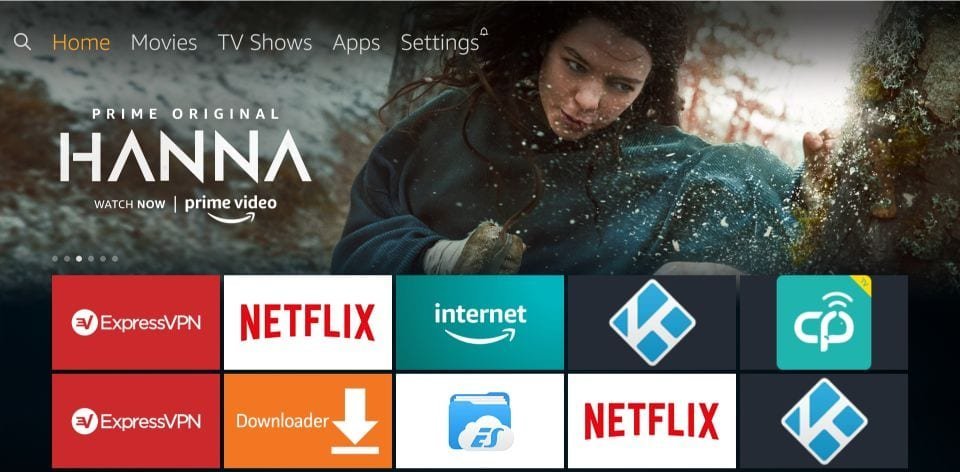
- On the Fire TV home screen, open Settings (the gear icon on the right of the top menu).
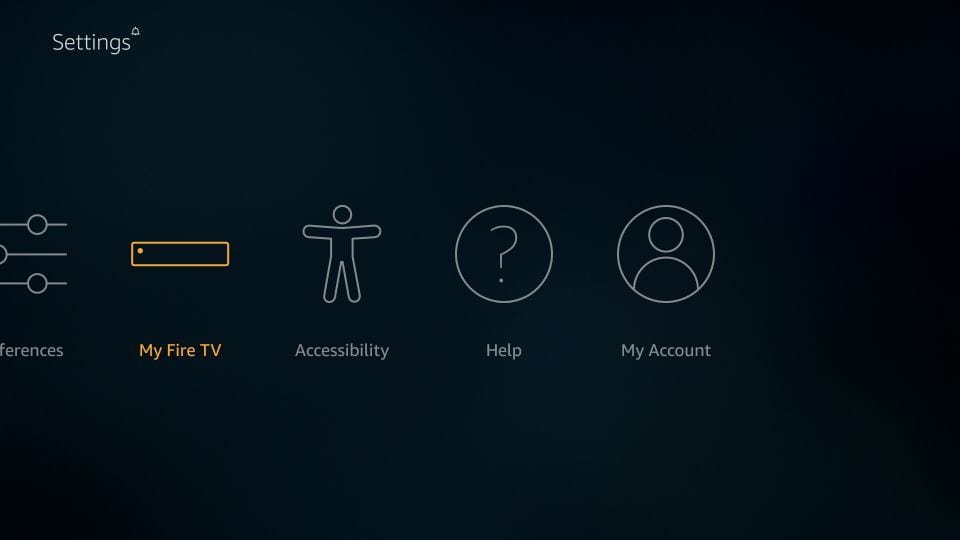
- Choose My Fire TV.
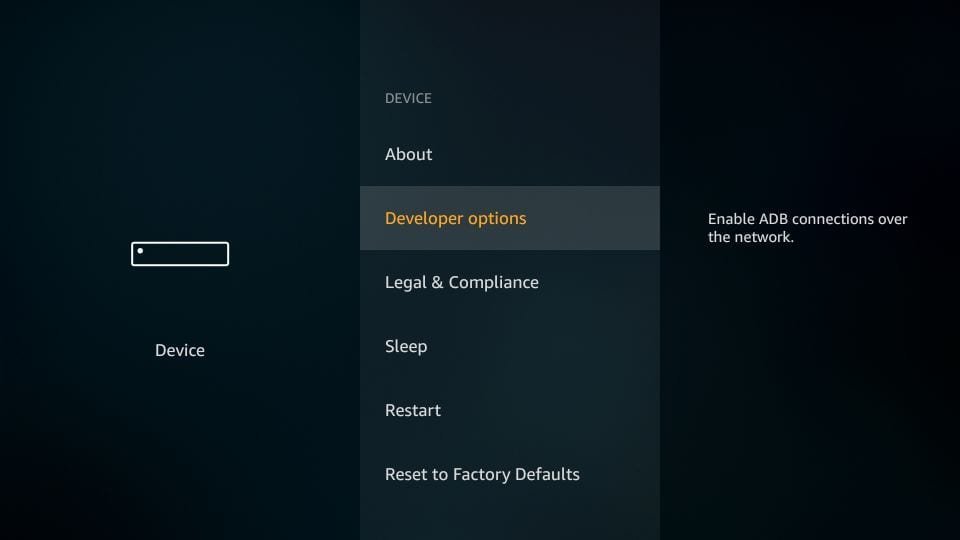
- Choose Developer options.
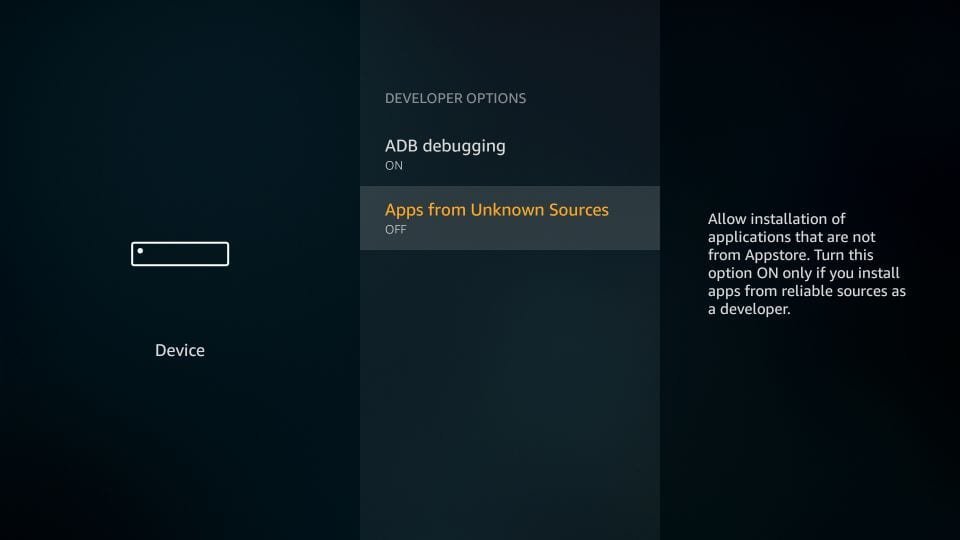
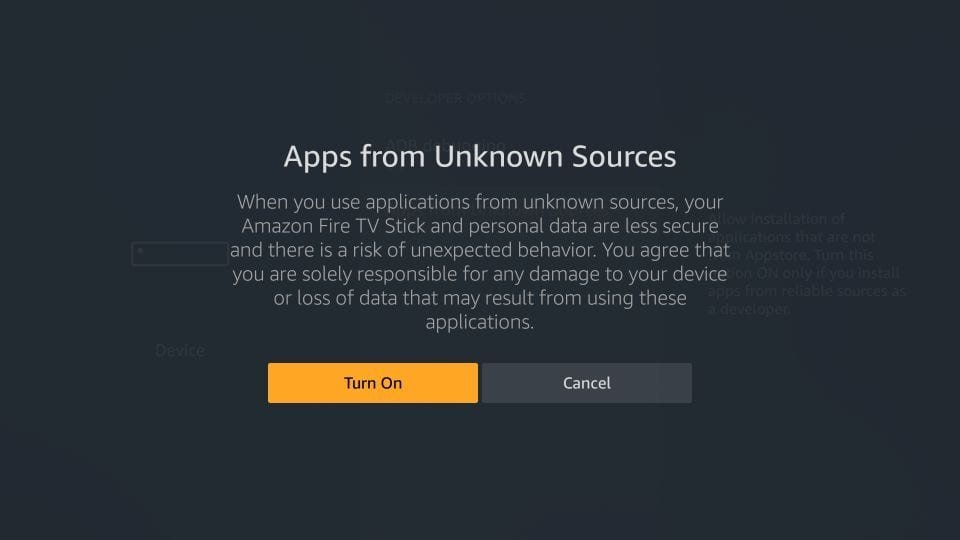
- Switch Apps from Unknown Sources to ON. On newer devices the option is called Install unknown apps instead — open it and switch it on for Downloader (you will install Downloader in step 2; you can come back here if it is not listed yet).
- A warning appears. Confirm with Turn on.
Step 2: Install the Downloader app
Downloader is a free, well-known app (by AFTVnews) that is in the official Amazon Appstore. It simply fetches a file from a short code.
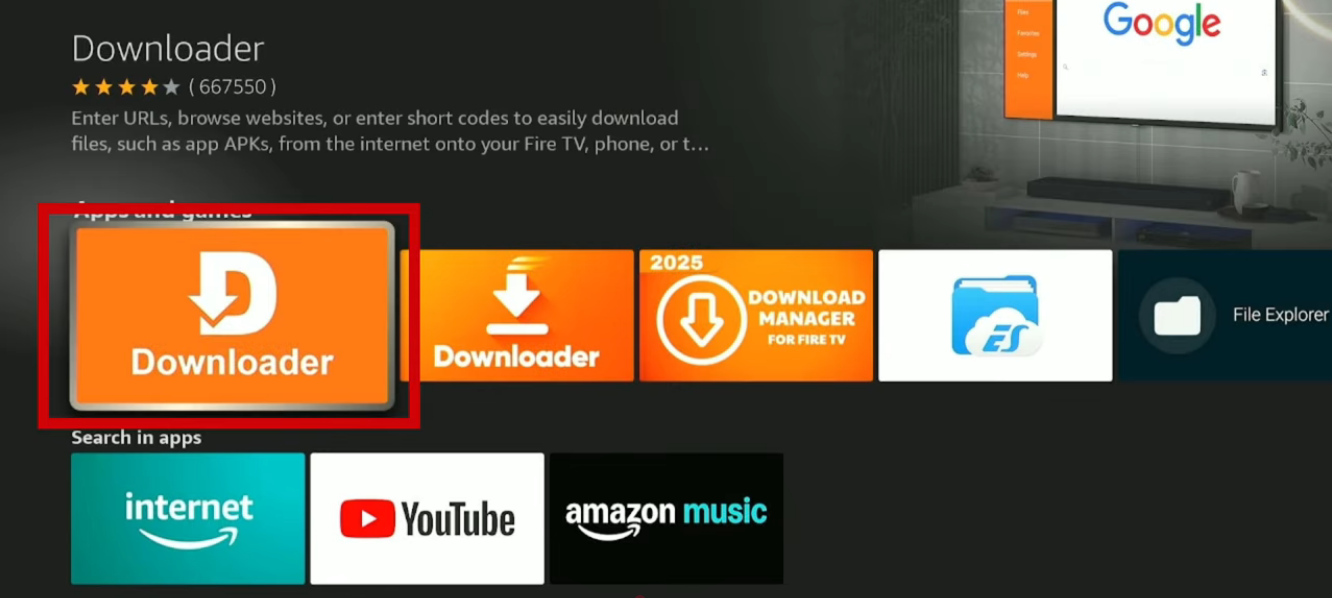
- Go back to the home screen and open Search (the magnifying glass, or say "Downloader" into the Alexa remote).
- Type Downloader, select the orange Downloader app, and install it.
- Open Downloader. If it asks for permission to access files, select Allow.
Step 3: Download the IPTV player with its code
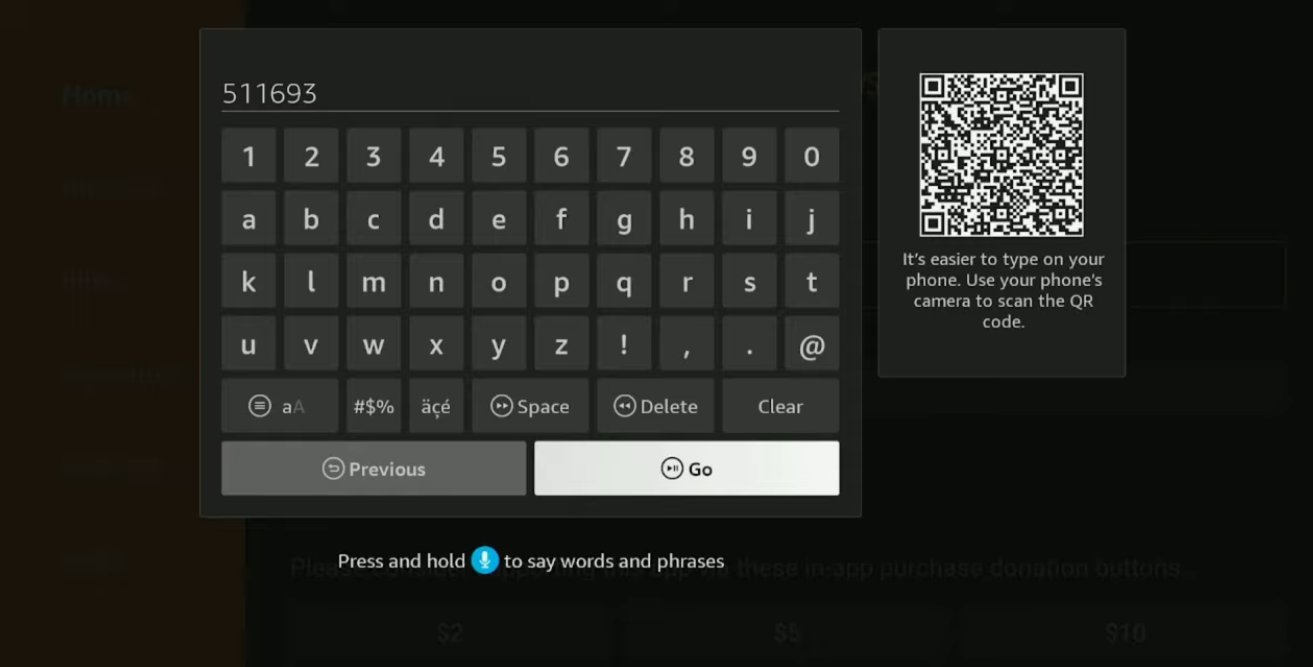
- In Downloader, select the URL field on the Home tab.
- Type the code for your player — 395800 for Hot Player or 511693 for IBO Player — and press GO.
- Wait for the download to finish, then press Install.
- When it says App installed, press Done (not Open). Downloader then offers to delete the installation file — select Delete twice to free up space. The player stays installed.
Now open the player from Your Apps & Channels (hold the Home button and choose Apps). Long-press it and choose Move to front so it sits on your home screen.
Step 4: Note the code the app shows
The first time the player opens, it shows the details it needs to be linked to your subscription:
- Hot Player shows a MAC address (six pairs of letters and numbers, like
a1:b2:c3:d4:e5:f6). - IBO Player shows a MAC address and a device key.
Write these down or take a photo of the screen. This is the app's own code — not your Firestick's MAC address and not your router's. Using the wrong one is the most common reason activation fails.
Ready to watch?
Try every channel free for 24 hours. No payment, no commitment.
Step 5: Add your subscription to the player
Do this on your phone or computer, not on the Firestick.
- Hot Player: open
hotplayer.app/upload, enter the MAC address, choose Link, paste your M3U link and save. Full walkthrough: How to activate Hot Player. - IBO Player: open
iboplayer.com/device/activate, enter the MAC address and device key, choose Add Playlist and paste your M3U link. Full walkthrough: How to activate IBO Player.
Then close the player on the Firestick and open it again. Your live channels, movies and series load within a few seconds.
Hot Player and IBO Player are paid apps, licensed per device. A licence is included free with our 12-month, 24-month and Lifetime plans — request it from the Applications page and our team activates it for you within 24 hours.
Troubleshooting
Downloader says "Install blocked" or nothing happens after the download
Unknown apps are not allowed for Downloader yet. Go to Settings › My Fire TV › Developer options and switch on Apps from Unknown Sources (or Install unknown apps › Downloader). Then open Downloader again and repeat the code.
"There was a problem parsing the package"
The download was interrupted, usually by a weak Wi-Fi signal or a full stick. Delete old installation files in Downloader (Files tab), restart the Firestick (Settings › My Fire TV › Restart) and try the code again.
The code opens a website instead of a download
Make sure you typed the code in Downloader's URL field on the Home tab, with no spaces, and pressed GO. Codes do not work in the Firestick's own search bar.
Channels buffer or freeze
Restart your router and the Firestick, move the router closer or use Amazon's Ethernet adapter, and make sure nobody else is watching on the same line — one subscription means one stream at a time. More fixes: IPTV buffering: what actually works.
FAQ
Is it safe to turn on "Apps from Unknown Sources"?
The setting only allows apps you install yourself. Downloader is a long-established app in Amazon's own store, and the codes above point to the official Hot Player and IBO Player builds. Install nothing else through it that you do not trust.
Can I install IPTV on Firestick without Downloader?
Not easily. Hot Player and IBO Player are not in the Amazon Appstore, so Downloader is the simplest way to get them. Any other route still ends up sideloading the same app.
Does this work on the Fire TV Stick Lite and older models?
Yes. The steps are the same on every Fire TV device. On older or Lite sticks, Hot Player is the lighter choice and starts faster.
Can I use one subscription on two Firesticks?
You can install the player on both, but a subscription includes one connection, so only one can stream at a time. Watching on two at once causes freezing and can get the line disabled. For two screens at the same time, you need a second subscription.
Do I need a VPN?
No. A VPN is not required. It can help if your internet provider slows down IPTV traffic, and a premium VPN is included with the Lifetime VIP plan.
Prefer clicking through it? The interactive installation guide shows the same steps for your exact player.
Prefer to click through it?
The interactive installation guide shows the exact steps for your device and player.
Open the installation guide →