
IOS & Android Phones
For Android:
- Download the MYTVOnline+ Lecteur IPTV app from this link: Download MYTVOnline+ Lecteur IPTV for Android.
- Install the MYTVOnline+ Lecteur IPTV application on your device.
For iOS:
- Download the MYTVOnline+ Lecteur IPTV app from this link: Download MYTVOnline+ Lecteur IPTV for iOS.
- Install the IPTV Smarters Pro application on your device.
Setup IPTV Smarters via Playlist:
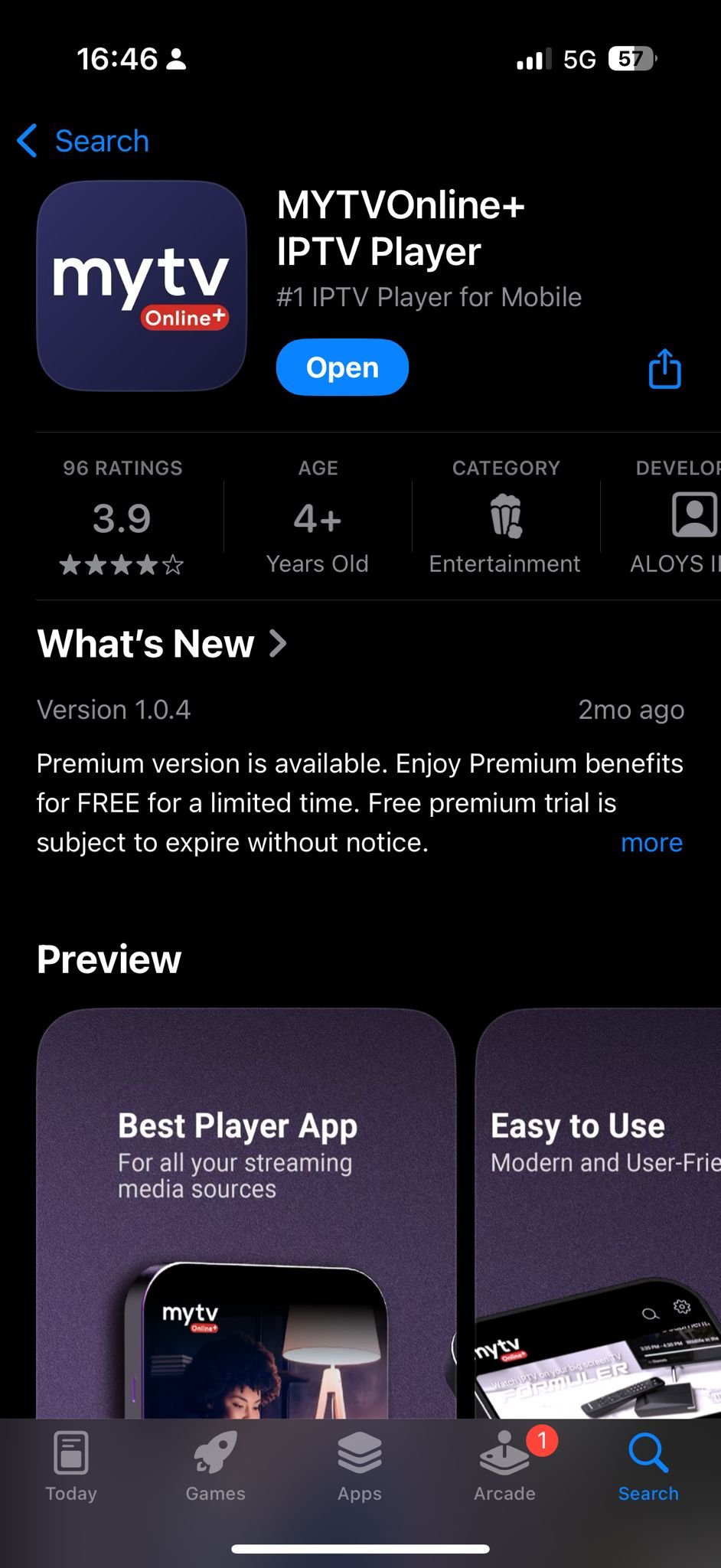
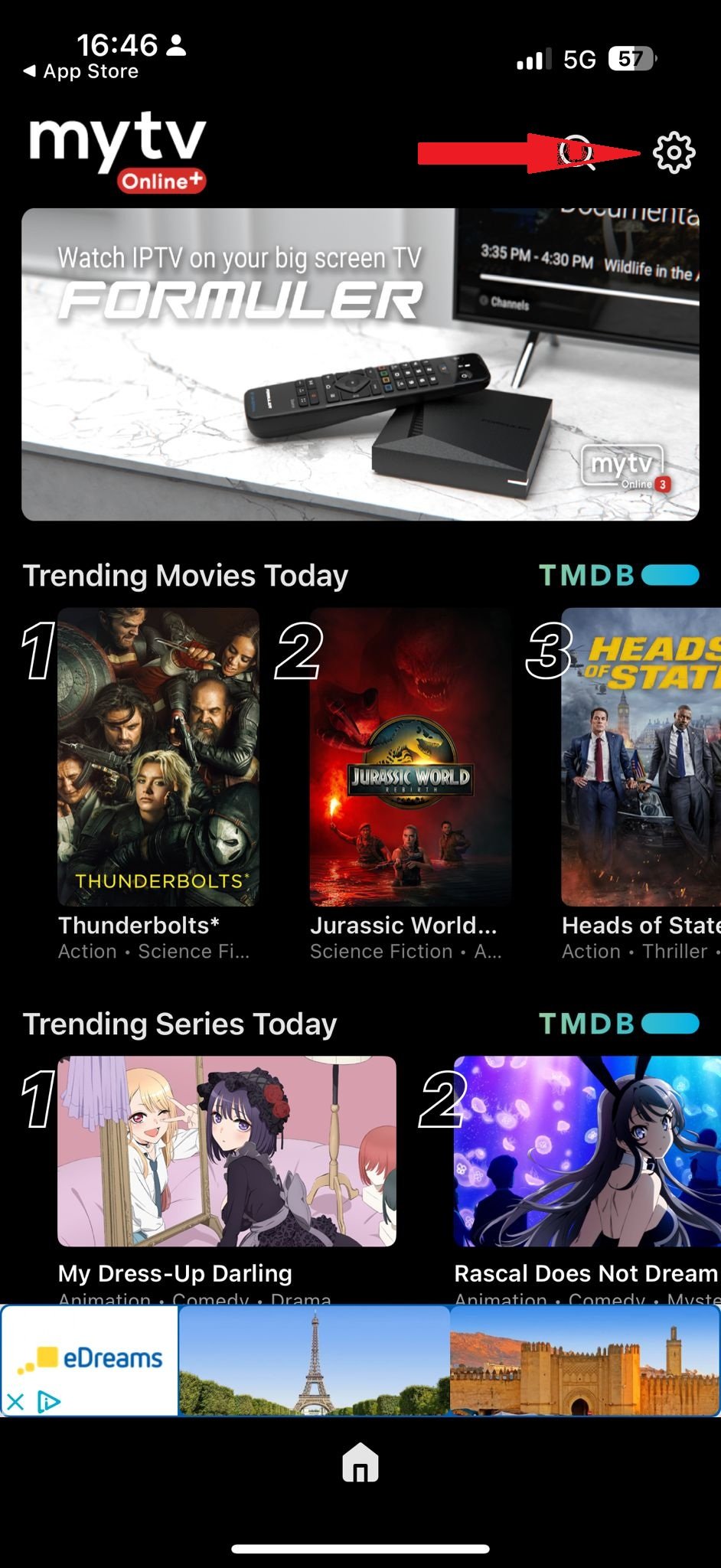
- Step1: Open the app and press on "Settings"
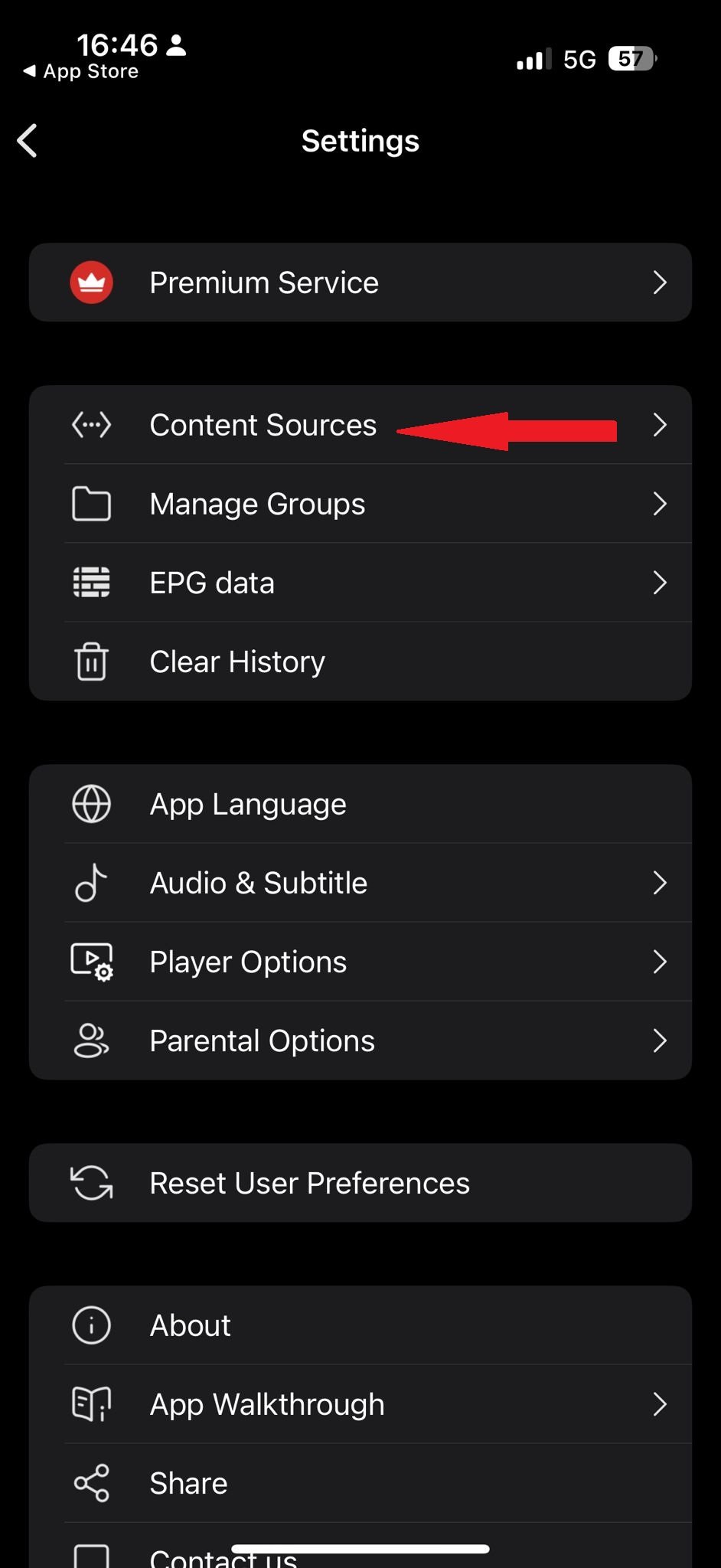
- Step2: Press on "Content Sources"
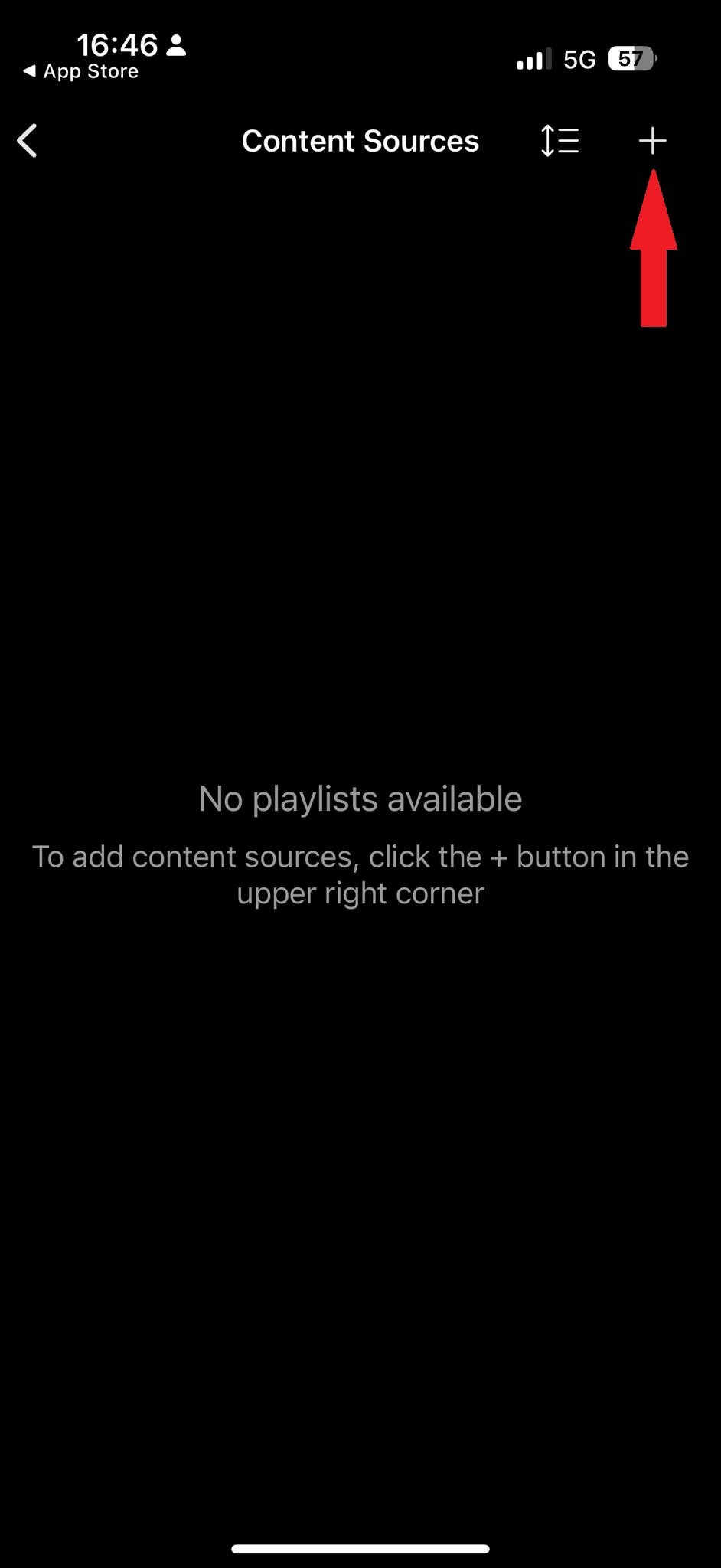
- Step3: Press on the "+" icon
- Step4: Press on the "Add m3u Playlist"
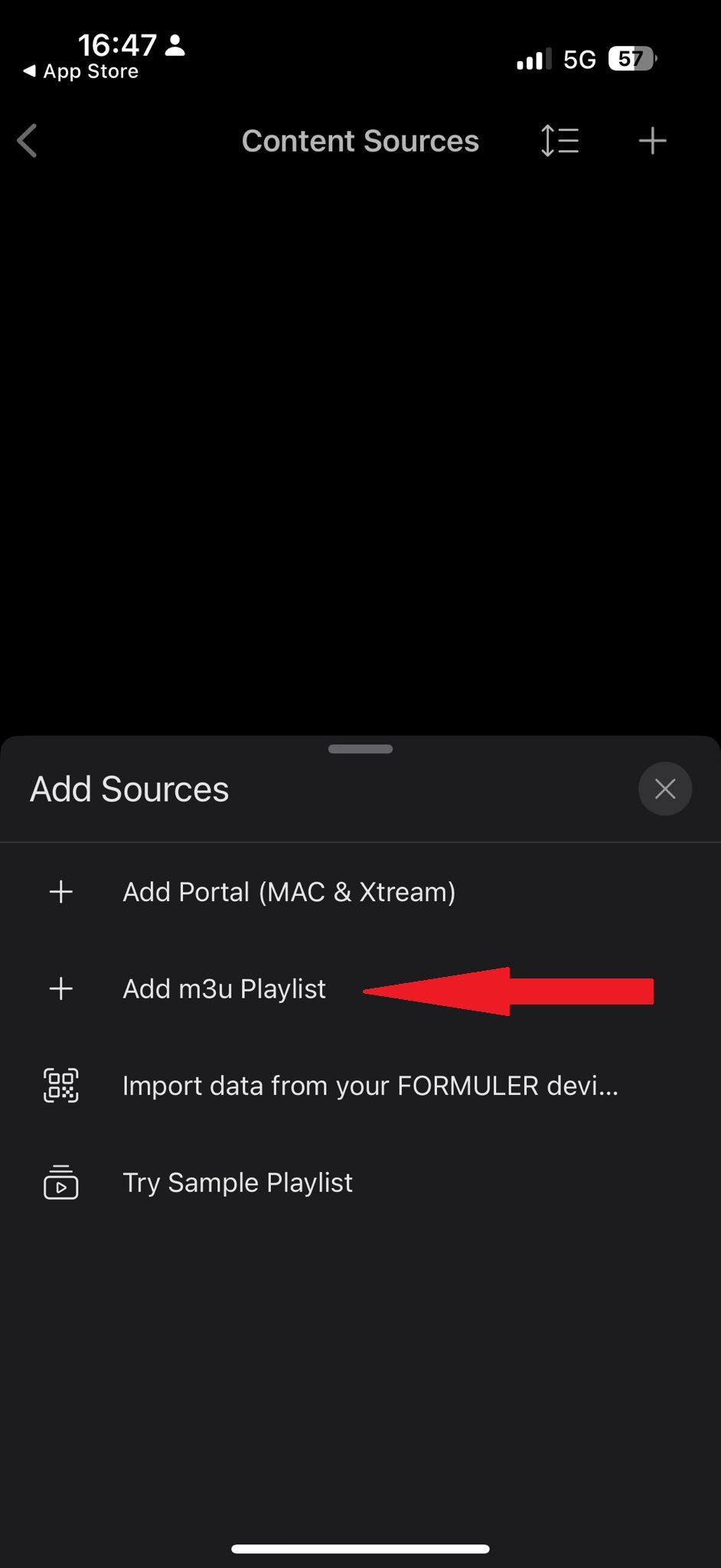
- Step5: Add your playlist URL
In the Nickname field, enter any name you like.
In the Playlist URL field, paste the M3U link we emailed you.
Windows / Mac
There are many free IPTV players available for Windows and iOS, such as IPTV Smarters Pro, IPTV Experts, IPTV Stream Player...etc.
However, in this section, we will provide a setup guide for IBO Player. It is a premium IPTV player, it is the most stable and professional player (they offer a 7-day free trial, allowing you to try it out before committing)
Setup Guide
- Step 1: Open IBO Player. You will see your device's MAC address and Device Key displayed on the screen.
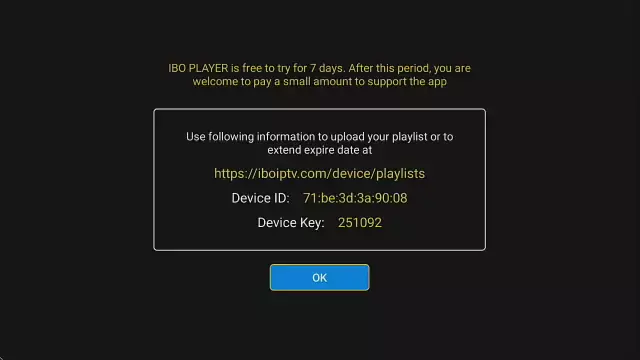
- Step 2: Add Your M3U Playlist to IBO Player.
- Go to the IBO Player website: https://iboplayer.com/
- Click on Manage Playlists or go directly to: https://iboplayer.com/device/login
- Enter your MAC address and Device Key to log in.
- Click Add Playlist and paste the M3U link we sent you via email.
- Step 3: Restart your Ibo player app and enjoy your subscription
Fire tv stick
Installing IBO Player on Your Amazon Fire TV Stick:
While IBO Playeris available on the Google Play Store and Apple App Store for Android and iOS devices, it is not available in the Amazon Appstore. Therefore, you will need to sideload it onto your FireStick.
To do this, you must first enable apps from unknown sources in your FireStick settings.
1. Enable Apps from Unknown Sources:
- Step1: On your FireStick home screen, navigate to the top menu bar and select Settings.
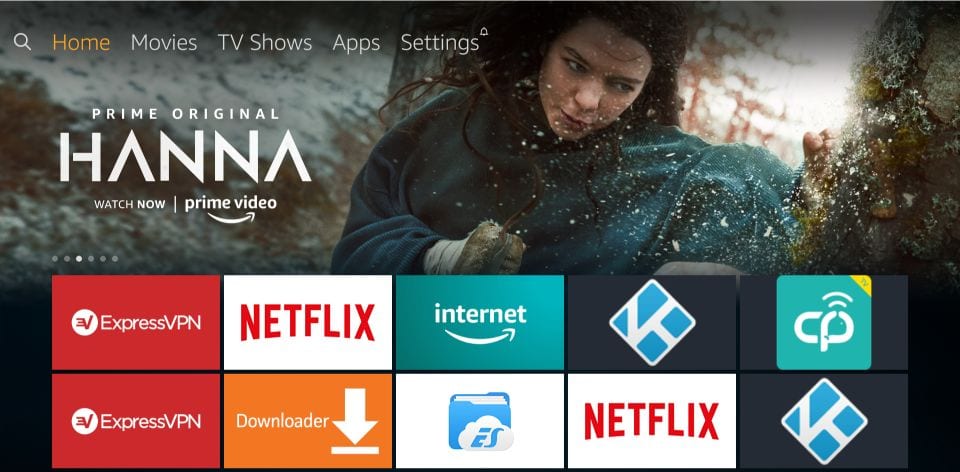
- Step2: In the Settings menu, choose My Fire TV.

- Step3: Select Developer Options from the list of available options.

- Step 4: If the option Apps from Unknown Sources is OFF, click it once to turn it ON.

- Step5: You may see a warning message. To proceed, click Turn on.

Now that the FireStick settings allow installation of third-party apps, follow the steps below to install IPTV Smarters.
2. Install the Downloader App:
- Go back to the FireStick home screen and highlight the Search option.
- Type Downloader and select it from the search results.
- Click on the Downloader icon, then download and install the app.

3. Download Ibo Player:
- Step 1: Open the Downloader app. You may see some prompts; dismiss them until you reach the main screen, where you can see the URL textbox
- Step 2: Now, in the URL field, enter the code 511693 (which corresponds to the direct download link for IBO Player) and click GO.
- Step 3: When you click Go, a pop-up will appear prompting you to download IBO Player. Download and install the app.
4: Final Phase: Setup your playlist
- Step 1: Open IBO Player. You will see your device's MAC address and Device Key displayed on the screen.
- Step 2: Add Your M3U Playlist to IBO Player.
- Go to the IBO Player website: https://iboplayer.com/
- Click on Manage Playlists or go directly to: https://iboplayer.com/device/login
- Enter your MAC address and Device Key to log in.
- Click Add Playlist and paste the M3U link we sent you via email.
- Step 3: Restart your Ibo player app and enjoy your subscription
Smart TV (Samsung & LG)
There are many free IPTV players available for Windows and iOS, such as IPTV Smarters Pro, IPTV Experts, IPTV Stream Player...etc.
However, in this section, we will provide a setup guide for IBO Player. It is a premium IPTV player, it is the most stable and professional player (they offer a 7-day free trial)
For Samsung Smart TV:
- Step 1: Press the Smart Hub button on your Samsung Smart TV remote.
- Step 2: Search for “Ibo Player” in the search bar and install the app.
- Step 3: Open IBO Player. You will see your device's MAC address and Device Key displayed on the screen.
- Step 4: Add Your M3U Playlist to IBO Player.
- Go to the IBO Player website: https://iboplayer.com/
- Click on Manage Playlists or go directly to: https://iboplayer.com/device/login
- Enter your MAC address and Device Key to log in.
- Click Add Playlist and paste the M3U link we sent you via email.
- Step 5: Restart your Ibo player app and enjoy your subscription.
For LG Smart TV:
- Step 1: Turn on your LG Smart TV and press the “Home” button on the remote.
- Step 2: Navigate to the LG Content Store and search for “Ibo Player” in the search bar, and install the app.
- Step 3: Open IBO Player. You will see your device's MAC address and Device Key displayed on the screen.
- Step 4: Add Your M3U Playlist to IBO Player.
- Go to the IBO Player website: https://iboplayer.com/
- Click on Manage Playlists or go directly to: https://iboplayer.com/device/login
- Enter your MAC address and Device Key to log in.
- Click Add Playlist and paste the M3U link we sent you via email.
- Step 5: Restart your Ibo player app and enjoy your subscription.
Other smart TV
Step 1: From your TV store on Samsung, LG, or other compatible devices, you can download any of the following applications: SetIPTV, NetIPTV, Smart IPTV, IBO PLAYER, FLIX IPTV, SMARTONE, SS IPTV, OTT Player, or IPTV EXTREME.
Step 2: Once you have installed the chosen application, open it and you should see the MAC address displayed on the screen, as shown in the example below:
Step 3: Send us the MAC address via Email (support@poktv.com).
Step 4: After a few minutes, restart or reboot your TV and then open the application. You should now be able to access the Beast Stream.
Mag Box
Step 1 : Send us the MAC Address of your MAG via Email.
Step 2 : After making the payment, we will send you the portal link